sofia_redux.pipeline: Data Reduction Pipelines for SOFIA
The sofia_redux.pipeline package is a data reduction interface for
astronomy pipelines. It provides interactive and command-line interfaces to
astronomical algorithms.
This package was developed to support data reduction pipelines for the SOFIA telescope, but is designed to be a general-purpose interface package to any arbitrary series of data reduction steps.
Getting Started
Running SOFIA pipelines
Out of the box, Redux provides two command-line scripts:
redux (
sofia_redux.pipeline.sofia.redux_app): An interactive graphical interface (GUI) for the SOFIA pipelines.redux_pipe (
sofia_redux.pipeline.sofia.redux_pipe): A command-line interface to the SOFIA pipelines.
In general, Redux works by reading in input data, deciding which reduction to run, then running a pre-defined set of reduction steps.
The GUI allows interactive parameter editing, and intermediate product display for each step.
To begin a reduction, start the GUI by typing redux, then load in a set of data with
the File->Open New Reduction menu.
The command-line interface allows fully automatic pipeline reductions. To begin a reduction
with the automatic pipeline, type redux_pipe and provide the file names of the data
to reduce on the command line. Non-default parameters can also be provided by specifying
a configuration file in INI format.
Displaying FITS data
This package also provides a stand-alone front end to some of its display tools
(sofia_redux.pipeline.gui.qad). The command line script qad (sofia_redux.pipeline.gui.qad.qad_app) starts a
small GUI that allows interactive display of FITS images and spectra in DS9 and
a native spectral viewer (sofia_redux.visualization.eye). To use it, DS9
must be installed (see http://ds9.si.edu/), and the ds9 executable
must be available in the PATH environment variable.
To use the QAD, start up the GUI by typing qad at the command line,
then double-click on a FITS image to display it. Display preferences can be
set from the ‘Settings’ menu
Developing new pipelines
Redux is designed to be a development platform, for running any sequence of data reduction steps. To use Redux to develop a new pipeline, the following are necessary:
A reduction class that inherits from the
sofia_redux.pipeline.Reductionclass. This class defines all data reduction steps, and the order in which they should run.A parameter class that inherits from the
sofia_redux.pipeline.Parametersclass. This class should provide default parameters for the steps defined in the reduction object.A reduction object chooser class that inherits from the
sofia_redux.pipeline.Chooserclass. The chooser decides from input data which reduction object to instantiate.A configuration class that inherits from
sofia_redux.pipeline.Configuration. This class provides default parameters for the interface, such as default log file names, and specifies the reduction chooser.A pipe script that instantiates a
sofia_redux.pipeline.Pipeobject with the appropriate configuration.An application script that instantiates a
sofia_redux.pipeline.Applicationobject with the appropriate configuration.
Optionally, custom viewers may also be defined for displaying intermediate data
products. These should inherit from the sofia_redux.pipeline.Viewer class.
See the sofia_redux.pipeline.sofia module for examples of all these classes and scripts.
Architecture
Redux is designed to be a light-weight interface to data reduction pipelines. It contains the definitions of how reduction algorithms should be called for any given instrument, mode, or pipeline, in either a command-line interface (CLI) or graphical user interface (GUI) mode, but it does not contain the reduction algorithms themselves.
Redux is organized around the principle that
any data reduction procedure can be accomplished by running a linear
sequence of data reduction steps. It relies on a Reduction class that
defines what these steps are and in which order they should be run
(the reduction “recipe”). Reductions have an associated Parameter
class that defines what parameters the steps may accept. Because
reduction classes share common interaction methods, they can be
instantiated and called from a completely generic front-end GUI,
which provides the capability to load in raw data files, and then:
set the parameters for a reduction step,
run the step on all input data,
display the results of the processing,
and repeat this process for every step in sequence to complete the
reduction on the loaded data. In order to choose the correct
reduction object for a given data set, the interface uses a Chooser
class, which reads header information from loaded input files and
uses it to decide which reduction object to instantiate and return.
The GUI is a PyQt application, based around the Application
class. Because the GUI operations are completely separate from the
reduction operations, the automatic pipeline script is simply a wrapper
around a reduction object: the Pipe class uses the Chooser to
instantiate the Reduction, then calls its reduce method, which calls
each reduction step in order and reports any output files generated.
Both the Application and Pipe classes inherit from a common Interface
class that holds reduction objects and defines the methods for
interacting with them. The Application class additionally may
start and update custom data viewers associated with the
data reduction; these should inherit from the Redux Viewer class.
All reduction classes inherit from the generic Reduction class,
which defines the common interface for all reductions: how parameters
are initialized and modified, how each step is called.
Each specific reduction class must then define
each data reduction step as a method that calls the appropriate
algorithm.
The reduction methods may contain any code necessary to accomplish the data reduction step. Typically, a reduction method will contain code to fetch the parameters for the method from the object’s associated Parameters class, then will call an external data reduction algorithm with appropriate parameter values, and store the results in the ‘input’ attribute to be available for the next processing step. If processing results in data that can be displayed, it should be placed in the ‘display_data’ attribute, in a format that can be recognized by the associated Viewers. The Redux GUI checks this attribute at the end of each data reduction step and displays the contents via the Viewer’s ‘display’ method.
Parameters for data reduction are stored as a list of ParameterSet
objects, one for each reduction step. Parameter sets contain the key,
value, data type, and widget type information for every parameter.
A Parameters class may generate these parameter sets by
defining a default dictionary that associates step names with parameter
lists that define these values. This dictionary may be defined directly
in the Parameters class, or may be read in from an external configuration
file or software package, as appropriate for the reduction.
Usage
Automatic Mode Execution
The DPS pipeline infrastructure runs a pipeline on previously-defined reduction groups as a fully-automatic black box. To do so, it creates an input manifest (infiles.txt) that contains relative paths to the input files (one per line). The command-line interface to the pipeline is run as:
redux_pipe infiles.txt
The command-line interface will read in the specified input files, use their headers to determine the observation mode, and accordingly the steps to run and any intermediate files to save. Output files are written to the current directory, from which the pipeline was called. After reduction is complete, the script will generate an output manifest (outfiles.txt) containing the relative paths to all output FITS files generated by the pipeline.
Optionally, in place of a manifest file, file paths to input files may be directly specified on the command line. Input files may be raw FITS files, or may be intermediate products previously produced by the pipeline. For example, this command will complete the reduction for a set of FITS files in the current directory, previously reduced through the calibration step of the pipeline:
redux_pipe *CAL*.fits
To customize batch reductions from the command line, the redux_pipe interface accepts a configuration file on the command line. This file may contain any subset of the full configuration file, specifying any non-default parameters for pipeline steps. An output directory for pipeline products and the terminal log level may also be set on the command line.
The full set of optional command-line parameters accepted by the redux_pipe interface are:
-h, --help            show this help message and exit
-c CONFIG, --configuration CONFIG
                      Path to Redux configuration file.
-o OUTDIR, --out OUTDIR
                      Path to output directory.
-l LOGLEVEL, --loglevel LOGLEVEL
                      Log level.
Manual Mode Execution
In manual mode, the pipeline may be run interactively, via a graphical user interface (GUI) provided by the Redux package. The GUI is launched by the command:
redux
entered at the terminal prompt (Fig. 1). The GUI allows output directory specification, but it may write initial or temporary files to the current directory, so it is recommended to start the interface from a location to which the user has write privileges.
From the command line, the redux interface accepts an optional config file (-c) or log level specification (-l), in the same way the redux_pipe command does. Any pipeline parameters provided to the interface in a configuration file will be used to set default values; they will still be editable from the GUI.
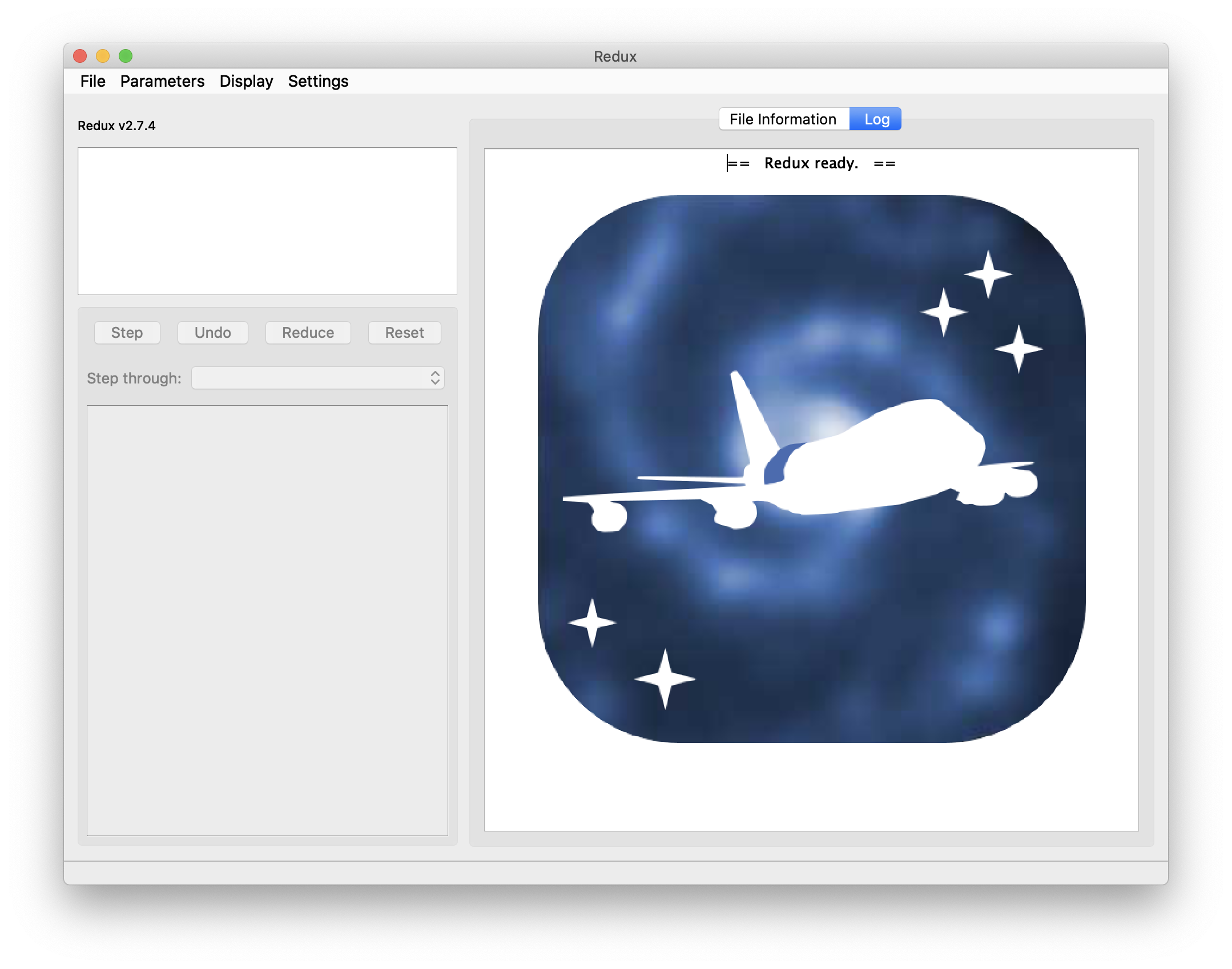
Fig. 1 Redux GUI startup.
Basic Workflow
To start an interactive reduction, select a set of input files, using the File menu (File->Open New Reduction). This will bring up a file dialog window (see Fig. 2). All files selected will be reduced together as a single reduction set.
Redux will decide the appropriate reduction steps from the input files, and load them into the GUI, as in Fig. 3.
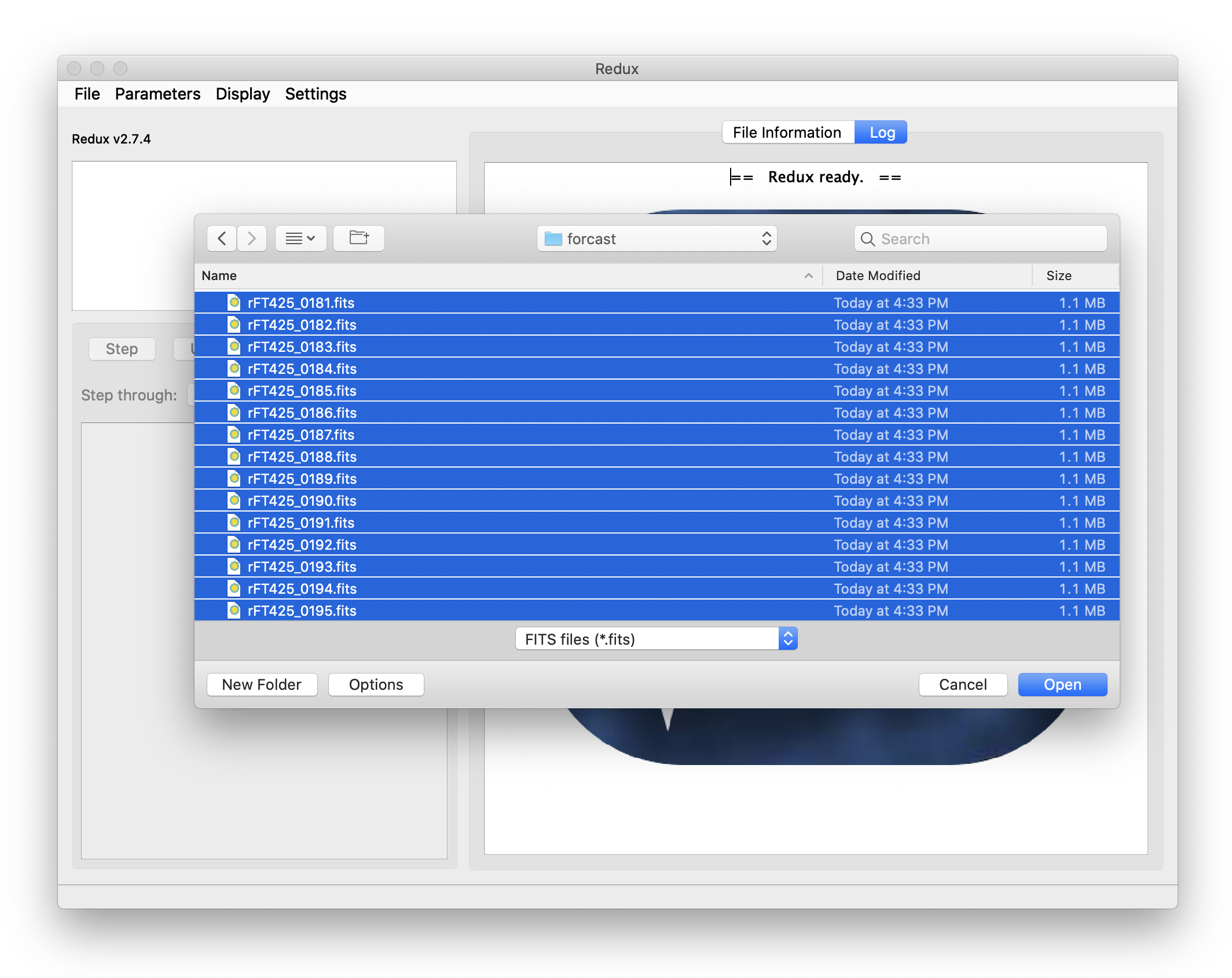
Fig. 2 Open new reduction.
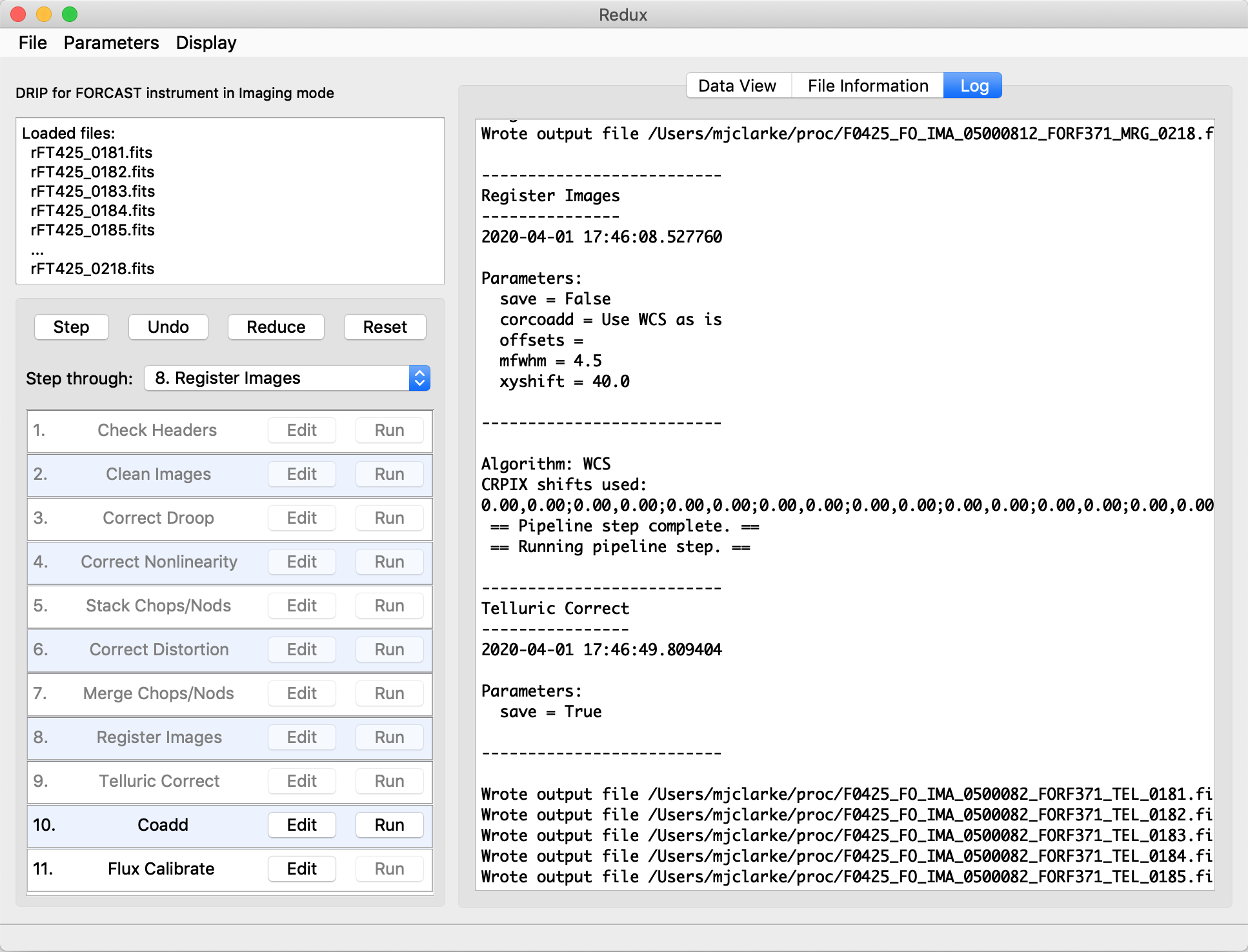
Fig. 3 Sample reduction steps. Log output from the pipeline is displayed in the Log tab.
Each reduction step has a number of parameters that can be edited before running the step. To examine or edit these parameters, click the Edit button next to the step name to bring up the parameter editor for that step (Fig. 4). Within the parameter editor, all values may be edited. Click OK to save the edited values and close the window. Click Reset to restore any edited values to their last saved values. Click Restore Defaults to reset all values to their stored defaults. Click Cancel to discard all changes to the parameters and close the editor window.
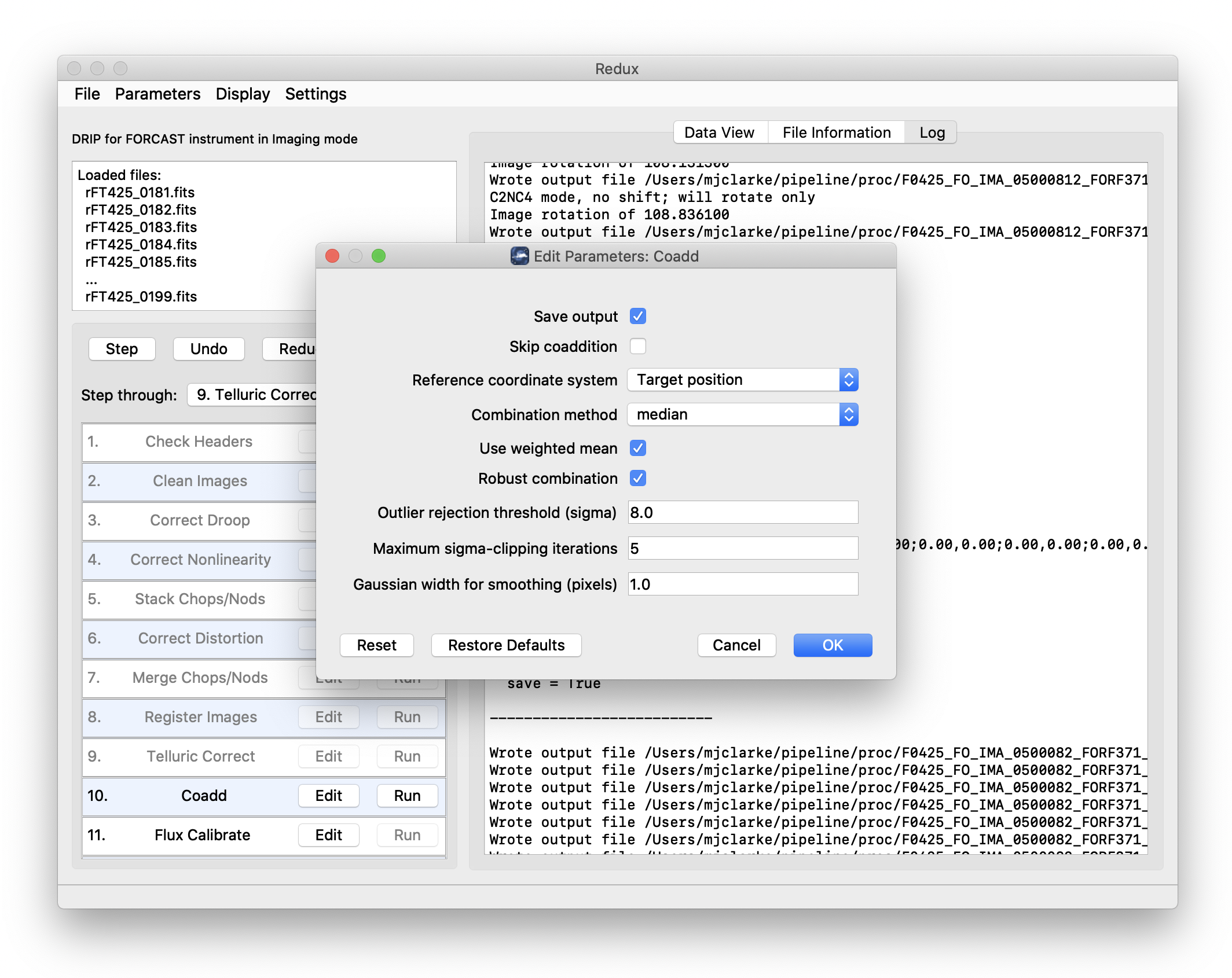
Fig. 4 Sample parameter editor for a pipeline step.
The current set of parameters can be displayed, saved to a file, or reset all at once using the Parameters menu. A previously saved set of parameters can also be restored for use with the current reduction (Parameters -> Load Parameters).
After all parameters for a step have been examined and set to the user’s satisfaction, a processing step can be run on all loaded files either by clicking Step, or the Run button next to the step name. Each processing step must be run in order, but if a processing step is selected in the Step through: widget, then clicking Step will treat all steps up through the selected step as a single step and run them all at once. When a step has been completed, its buttons will be grayed out and inaccessible. It is possible to undo one previous step by clicking Undo. All remaining steps can be run at once by clicking Reduce. After each step, the results of the processing may be displayed in a data viewer. After running a pipeline step or reduction, click Reset to restore the reduction to the initial state, without resetting parameter values.
Files can be added to the reduction set (File -> Add Files) or removed from the reduction set (File -> Remove Files), but either action will reset the reduction for all loaded files. Select the File Information tab to display a table of information about the currently loaded files (Fig. 5).
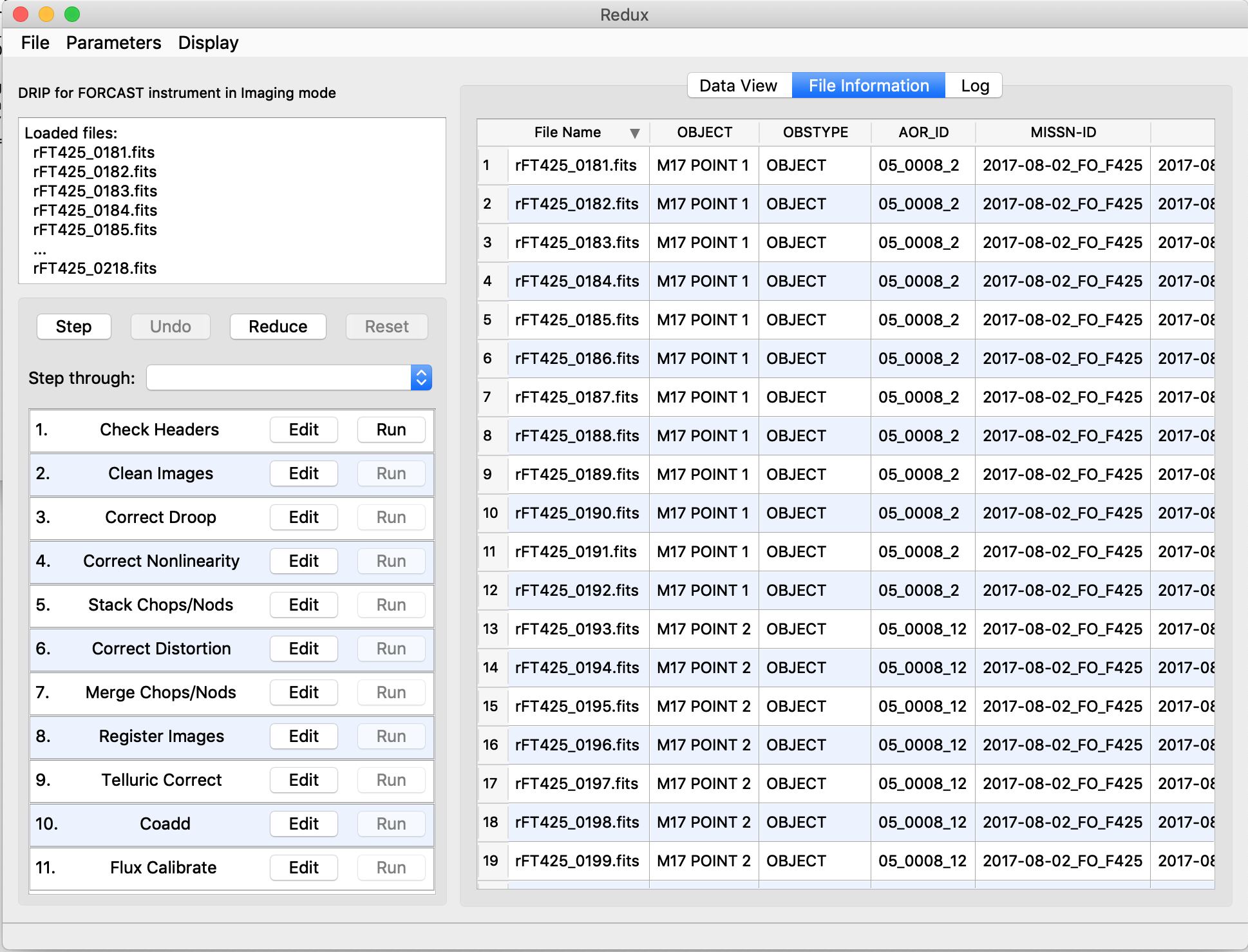
Fig. 5 File information table.
Display Features
The Redux GUI displays images for quality analysis and display (QAD) in the DS9 FITS viewer. DS9 is a standalone image display tool with an extensive feature set. See the SAO DS9 site (http://ds9.si.edu/) for more usage information.
After each pipeline step completes, Redux may load the produced images into DS9. Some display options may be customized directly in DS9; some commonly used options are accessible from the Redux interface, in the Data View tab (Fig. 6).
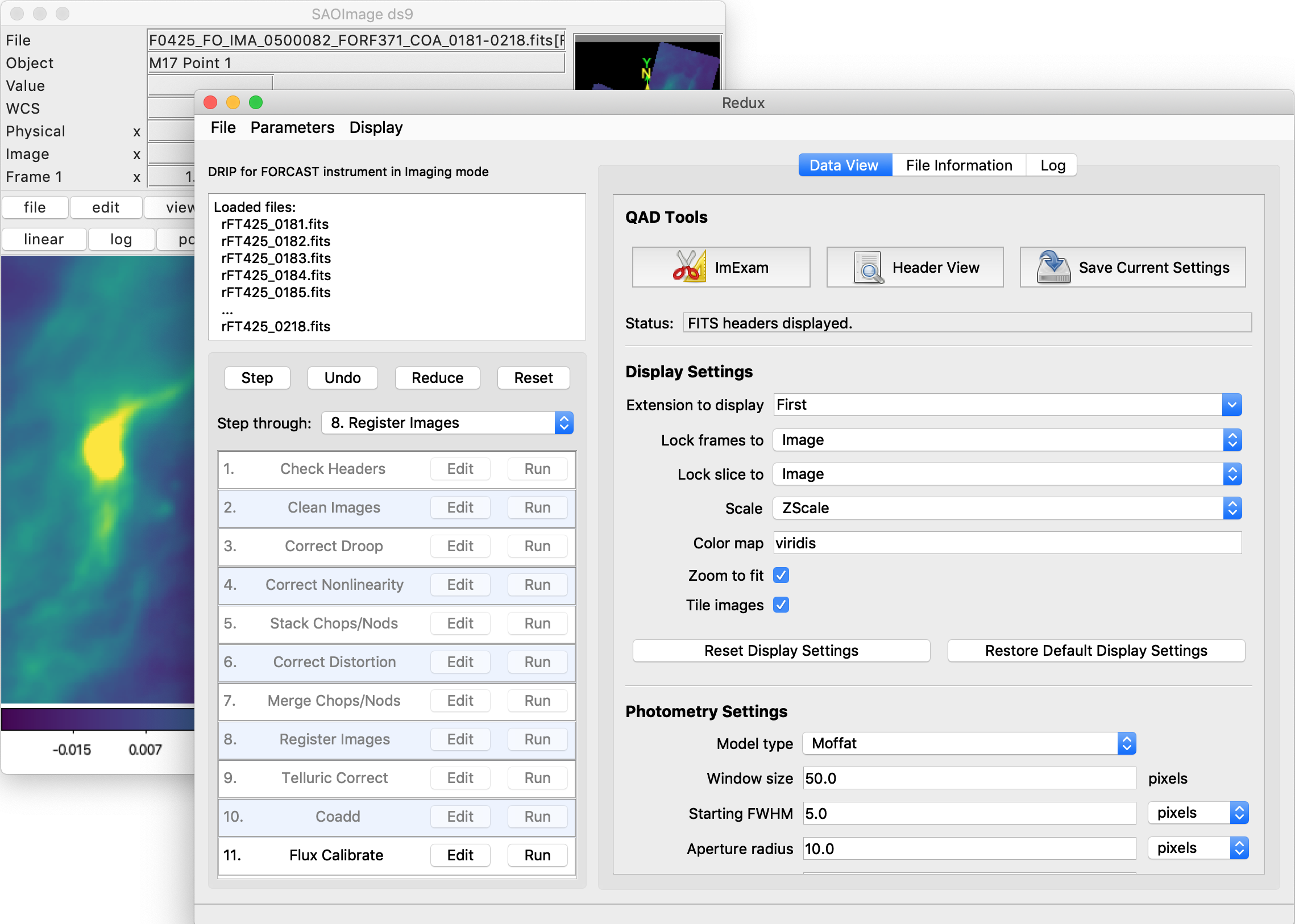
Fig. 6 Data viewer settings and tools.
From the Redux interface, the Display Settings can be used to:
Set the FITS extension to display (First, or edit to enter a specific extension), or specify that all extensions should be displayed in a cube or in separate frames.
Lock individual frames together, in image or WCS coordinates.
Lock cube slices for separate frames together, in image or WCS coordinates.
Set the image scaling scheme.
Set a default color map.
Zoom to fit image after loading.
Tile image frames, rather than displaying a single frame at a time.
Changing any of these options in the Data View tab will cause the currently displayed data to be reloaded, with the new options. Clicking Reset Display Settings will revert any edited options to the last saved values. Clicking Restore Default Display Settings will revert all options to their default values.
In the QAD Tools section of the Data View tab, there are several additional tools available.
Clicking the ImExam button (scissors icon) launches an event loop in DS9. After launching it, bring the DS9 window forward, then use the keyboard to perform interactive analysis tasks:
Type ‘a’ over a source in the image to perform photometry at the cursor location.
Type ‘p’ to plot a pixel-to-pixel comparison of all frames at the cursor location.
Type ‘s’ to compute statistics and plot a histogram of the data at the cursor location.
Type ‘c’ to clear any previous photometry results or active plots.
Type ‘h’ to print a help message.
Type ‘q’ to quit the ImExam loop.
The photometry settings (the image window considered, the model fit,
the aperture sizes, etc.) may be customized in the Photometry Settings.
Plot settings (analysis window size, shared plot axes, etc.) may be
customized in the Plot Settings.
After modifying these settings, they will take effect only for new
apertures or plots (use ‘c’ to clear old ones first). As for the display
settings, the reset button will revert to the last saved values
and the restore button will revert to default values.
For the pixel-to-pixel and histogram plots, if the cursor is contained within
a previously defined DS9 region (and the regions package is installed),
the plot will consider only pixels within the region. Otherwise, a window
around the cursor is used to generate the plot data. Setting the window
to a blank value in the plot settings will use the entire image.
Clicking the Header button (magnifying glass icon) from the QAD Tools section opens a new window that displays headers from currently loaded FITS files in text form (Fig. 7). The extensions displayed depends on the extension setting selected (in Extension to Display). If a particular extension is selected, only that header will be displayed. If all extensions are selected (either for cube or multi-frame display), all extension headers will be displayed. The buttons at the bottom of the window may be used to find or filter the header text, or generate a table of header keywords. For filter or table display, a comma-separated list of keys may be entered in the text box.
Clicking the Save Current Settings button (disk icon) from the QAD Tools section saves all current display and photometry settings for the current user. This allows the user’s settings to persist across new Redux reductions, and to be loaded when Redux next starts up.
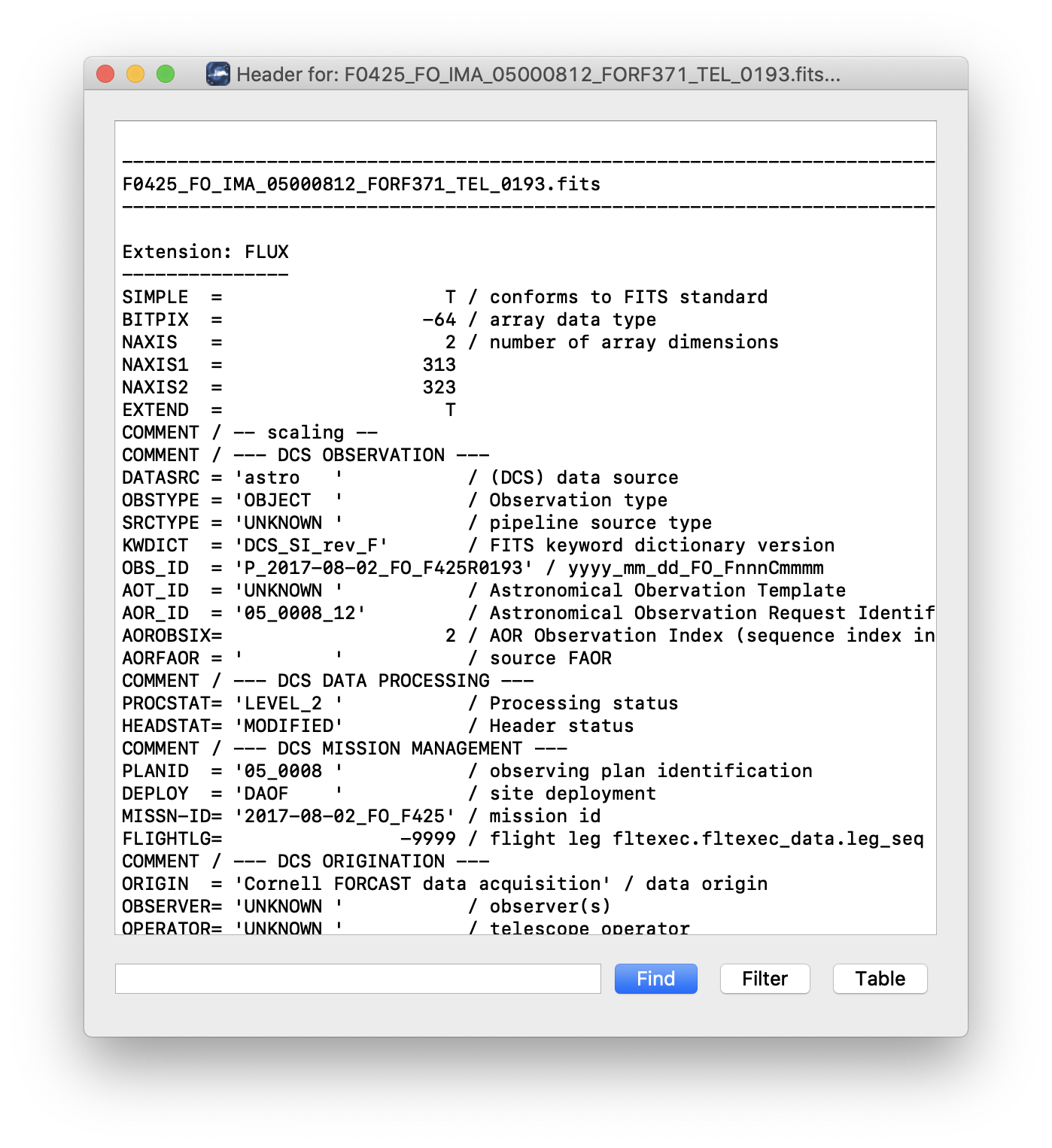
Fig. 7 QAD FITS header viewer.
Reference/API
Redux Core
sofia_redux.pipeline.application Module
Run Redux reduction objects from a GUI interface.
Functions
|
Run the Redux GUI. |
Classes
|
Graphical interface to Redux reduction objects. |
Class Inheritance Diagram
sofia_redux.pipeline.chooser Module
Choose Redux reduction objects based on input data.
Classes
|
Choose Redux reduction objects. |
Class Inheritance Diagram
sofia_redux.pipeline.configuration Module
Redux configuration.
Classes
|
Set Redux configuration. |
Class Inheritance Diagram
sofia_redux.pipeline.interface Module
Interface to Redux reduction objects.
Classes
|
Simple log handler for printing INFO messages. |
|
Interface to Redux reduction objects. |
Class Inheritance Diagram
sofia_redux.pipeline.parameters Module
Base classes for Redux parameter sets.
Classes
Ordered dictionary of parameter values for a reduction step. |
|
|
Container class for all parameters needed for a reduction. |
Class Inheritance Diagram
sofia_redux.pipeline.pipe Module
Run Redux reduction objects from the command line.
Functions
|
Run a pipeline from the command line. |
Classes
|
Command-line interface to data reduction steps. |
Class Inheritance Diagram
sofia_redux.pipeline.reduction Module
Base class for Redux reduction objects.
Classes
Reduction steps and data. |
Class Inheritance Diagram
sofia_redux.pipeline.viewer Module
Base class for Redux viewers.
Classes
|
Parent class for Redux data viewers. |
Class Inheritance Diagram
Redux GUI
sofia_redux.pipeline.gui.main Module
Main window for Redux Qt5 GUI.
Classes
|
Redux Qt5 GUI main window. |
Class Inheritance Diagram
sofia_redux.pipeline.gui.matplotlib_viewer Module
Basic Matplotlib viewer for image/plot display.
Classes
|
Show plot data in a separate window. |
|
Basic Matplotlib viewer. |
Class Inheritance Diagram
sofia_redux.pipeline.gui.qad_viewer Module
Redux Viewer using QAD modules for display to DS9.
Classes
|
Settings widget for QAD Viewer. |
Redux Viewer interface to DS9 and the Eye of SOFIA. |
Class Inheritance Diagram
sofia_redux.pipeline.gui.textview Module
Text viewer widget for use with QAD and Redux.
Classes
|
View, find, and filter text. |
Class Inheritance Diagram
sofia_redux.pipeline.gui.widgets Module
Widgets and other useful classes for support of the Redux GUI.
Classes
|
Reduction step widget. |
|
Progress bar widget for reduction steps. |
|
Edit parameters for a reduction step. |
|
Model for the File Information table view. |
Custom signals for widgets to emit. |
|
Log handler for a TextEdit-based logging window. |
|
|
Dialog to select files for removal. |
|
View and edit current configuration values. |
|
View and filter current parameter values. |
|
Worker class to run a reduction step. |
|
Worker class to load reduction data. |
|
Worker class to run a general function. |
Class Inheritance Diagram
QAD Viewer
sofia_redux.pipeline.gui.qad.qad_app Module
Standalone front-end for QAD display tool.
Functions
|
Quality Analysis and Display tool (QAD). |
sofia_redux.pipeline.gui.qad.qad_dialogs Module
Dialogs for the QAD standalone GUI.
Classes
|
Retrieve user preferences for display parameters. |
|
Retrieve user preferences for photometry parameters. |
|
Retrieve user preferences for plot parameters. |
Class Inheritance Diagram
sofia_redux.pipeline.gui.qad.qad_headview Module
FITS header viewing widget.
Classes
|
View, find, and filter text from FITS headers. |
Class Inheritance Diagram
sofia_redux.pipeline.gui.qad.qad_imview Module
DS9 Image Viewer for QAD.
Classes
View FITS images in DS9. |
Class Inheritance Diagram
sofia_redux.pipeline.gui.qad.qad_main_panel Module
Main GUI window for the QAD standalone tool.
Classes
QAD Qt5 GUI main window. |
Class Inheritance Diagram
SOFIA Redux
sofia_redux.pipeline.sofia.sofia_app Module
Run SOFIA Redux reduction objects interactively.
Functions
|
Run the Redux GUI. |
sofia_redux.pipeline.sofia.sofia_chooser Module
Choose SOFIA reduction objects based on input data.
Classes
Choose SOFIA Redux reduction objects. |
Class Inheritance Diagram
sofia_redux.pipeline.sofia.sofia_configuration Module
SOFIA Redux configuration.
Classes
|
Set Redux configuration for SOFIA pipelines. |
Class Inheritance Diagram
sofia_redux.pipeline.sofia.sofia_pipe Module
Run SOFIA Redux reduction objects from the command line.
Functions
|
Run Redux in batch mode. |
sofia_redux.pipeline.sofia.sofia_utilities Module
Functions
|
Parse aperture parameters from input string. |
|
Parse background parameters from input string. |
sofia_redux.pipeline.sofia.exes_reduction Module
EXES Reduction pipeline steps
Classes
EXES reduction steps. |
Class Inheritance Diagram
sofia_redux.pipeline.sofia.fifils_reduction Module
FIFI-LS Reduction pipeline steps
Classes
FIFI-LS reduction steps. |
Class Inheritance Diagram
sofia_redux.pipeline.sofia.flitecam_imaging_reduction Module
FLITECAM Imaging Reduction pipeline steps
Classes
FLITECAM imaging reduction steps. |
Class Inheritance Diagram
sofia_redux.pipeline.sofia.flitecam_reduction Module
FLITECAM Reduction pipeline steps
Classes
FLITECAM reduction steps. |
Class Inheritance Diagram
sofia_redux.pipeline.sofia.flitecam_slitcorr_reduction Module
FLITECAM Grism Slit Correction Reduction pipeline steps
Classes
FORCAST spesctroscopic slit correction reduction steps. |
Class Inheritance Diagram
sofia_redux.pipeline.sofia.flitecam_spatcal_reduction Module
FLITECAM Grism Spatcal Reduction pipeline steps
Classes
FLITECAM spectroscopic spatial calibration reduction steps. |
Class Inheritance Diagram
sofia_redux.pipeline.sofia.flitecam_spectroscopy_reduction Module
FLITECAM Spectroscopy Reduction pipeline steps
Classes
FLITECAM spectroscopy reduction steps. |
Class Inheritance Diagram
sofia_redux.pipeline.sofia.flitecam_wavecal_reduction Module
FLITECAM Grism Wavecal Reduction pipeline steps
Classes
FLITECAM wavelength calibration reduction steps. |
Class Inheritance Diagram
sofia_redux.pipeline.sofia.forcast_imaging_reduction Module
FORCAST Imaging Reduction pipeline steps
Classes
FORCAST imaging reduction steps. |
Class Inheritance Diagram
sofia_redux.pipeline.sofia.forcast_reduction Module
FORCAST Reduction pipeline steps
Classes
FORCAST reduction steps. |
Class Inheritance Diagram
sofia_redux.pipeline.sofia.forcast_slitcorr_reduction Module
FORCAST Grism Calibration Reduction pipeline steps
Classes
FORCAST spesctroscopic slit correction reduction steps. |
Class Inheritance Diagram
sofia_redux.pipeline.sofia.forcast_spatcal_reduction Module
FORCAST Grism Calibration Reduction pipeline steps
Classes
FORCAST spectroscopic spatial calibration reduction steps. |
Class Inheritance Diagram
sofia_redux.pipeline.sofia.forcast_spectroscopy_reduction Module
FORCAST Spectroscopy Reduction pipeline steps
Classes
FORCAST spectroscopy reduction steps. |
Class Inheritance Diagram
sofia_redux.pipeline.sofia.forcast_wavecal_reduction Module
FORCAST Grism Wavecal Reduction pipeline steps
Classes
FORCAST wavelength calibration reduction steps. |
Class Inheritance Diagram
sofia_redux.pipeline.sofia.hawc_reduction Module
HAWC Reduction pipeline steps
Classes
HAWC+ reduction steps. |
Class Inheritance Diagram
sofia_redux.pipeline.sofia.parameters.exes_parameters Module
EXES parameter sets.
Classes
|
Reduction parameters for the EXES pipeline. |
Class Inheritance Diagram
sofia_redux.pipeline.sofia.parameters.fifils_parameters Module
FIFI-LS parameter sets.
Classes
|
Reduction parameters for the FIFI-LS pipeline. |
Class Inheritance Diagram
sofia_redux.pipeline.sofia.parameters.flitecam_imaging_parameters Module
FLITECAM Imaging parameter sets.
Classes
|
Reduction parameters for the FLITECAM Imaging pipeline. |
Class Inheritance Diagram
sofia_redux.pipeline.sofia.parameters.flitecam_parameters Module
FLITECAM parameter sets.
Classes
|
Reduction parameters for the FLITECAM pipeline. |
Class Inheritance Diagram
sofia_redux.pipeline.sofia.parameters.flitecam_slitcorr_parameters Module
FLITECAM parameter sets.
Classes
|
Reduction parameters for the FLITECAM grism slitcorr pipeline. |
Class Inheritance Diagram
sofia_redux.pipeline.sofia.parameters.flitecam_spatcal_parameters Module
FLITECAM parameter sets.
Classes
|
Reduction parameters for the FLITECAM grism spatcal pipeline. |
Class Inheritance Diagram
sofia_redux.pipeline.sofia.parameters.flitecam_spectroscopy_parameters Module
FLITECAM spectroscopy parameter sets.
Classes
|
Reduction parameters for the FLITECAM spectroscopy pipeline. |
Class Inheritance Diagram
sofia_redux.pipeline.sofia.parameters.flitecam_wavecal_parameters Module
FLITECAM parameter sets.
Classes
|
Reduction parameters for the FLITECAM grism wavecal pipeline. |
Class Inheritance Diagram
sofia_redux.pipeline.sofia.parameters.forcast_imaging_parameters Module
FORCAST Imaging parameter sets.
Classes
|
Reduction parameters for the FORCAST Imaging pipeline. |
Class Inheritance Diagram
sofia_redux.pipeline.sofia.parameters.forcast_parameters Module
FORCAST parameter sets.
Classes
|
Reduction parameters for the FORCAST pipeline. |
Class Inheritance Diagram
sofia_redux.pipeline.sofia.parameters.forcast_slitcorr_parameters Module
FORCAST parameter sets.
Classes
|
Reduction parameters for the FORCAST grism slitcorr pipeline. |
Class Inheritance Diagram
sofia_redux.pipeline.sofia.parameters.forcast_spatcal_parameters Module
FORCAST parameter sets.
Classes
|
Reduction parameters for the FORCAST grism spatcal pipeline. |
Class Inheritance Diagram
sofia_redux.pipeline.sofia.parameters.forcast_spectroscopy_parameters Module
FORCAST parameter sets.
Classes
|
Reduction parameters for the FORCAST spectroscopy pipeline. |
Class Inheritance Diagram
sofia_redux.pipeline.sofia.parameters.forcast_wavecal_parameters Module
FORCAST parameter sets.
Classes
|
Reduction parameters for the FORCAST grism wavecal pipeline. |
Class Inheritance Diagram
sofia_redux.pipeline.sofia.parameters.hawc_parameters Module
HAWC parameter sets.
Classes
|
Reduction parameters for the HAWC pipeline. |